

 |
 |
 |
 |
 |
 |
 |
 |
 |
 |
 |
 |
 |
 |
 |
 |

Plotting
and Folder facilities in the EDMS
Plotting facilities has been introduced in the release 3.9.2 of the CERN EDMS. Some of these functions already exist in CDD for many years. They are now available in the EDMS as well. Furthermore, it is possible to profit from the EDMS tools (such as the Caddie) to plot a particular set of drawings.
At the same time, we defined the new document type "Drawing Folder". It gives a natural possibility to the end-users to group their drawings. It is similar to the already-known CDD Folder but it permits to point to the precise versions of the drawings. It is then particularly interesting in order to keep trace of drawings associated to market surveys, calls for tender, etc. It can also be used to follow the evolution of the set of drawings within a project.
How to plot a particular version of a given drawing ?
- Find the concerned version with the search tool and click on the link Doc. page.
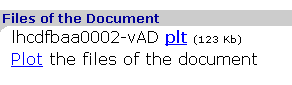
- If it is possible to plot some files of the drawing, you find the link "Plot the files of the document". Click on this link.
- You have then the possibility to choose one of the available plotters, the number of copies, the format of the copies (Original or A3 for instance) and the folding option.
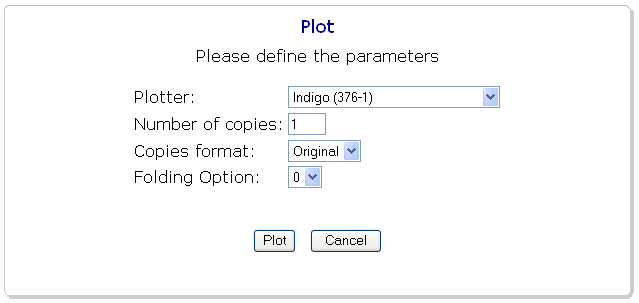
- Click on the "Plot" button to send your request.
How to plot several versions of drawings at the same time ?
- Click on the "caddie" link in the EDMS toolbar (in the top-right corner).
- If needed, clean your caddie by using the options "Select All" and "Remove" links.
- Click on the "Add" link. This will give you access to the EDMS search tool.
- If you know the concerned drawing numbers, we recommend you to click on the "Advanced" link in order to profit from the variety of criterias. In particular, you may want to look for the last versions only. For instance, you can enter LHCDFBAN00% in the field "Document Id" and select the option "Last version only".
- Once you obtain the list of documents, you have to select the ones you are interested in (check the small boxes on the left). Note: this may be painful at the moment if you have to select tens of documents. A future version of the EDMS will propose to select all the documents.
- Click on the button "Add to Caddie". You are then back in your caddie.
- If you want to plot all the drawings contained in your caddie, profit from the "Select All" link. Otherwise, select the only ones you want.
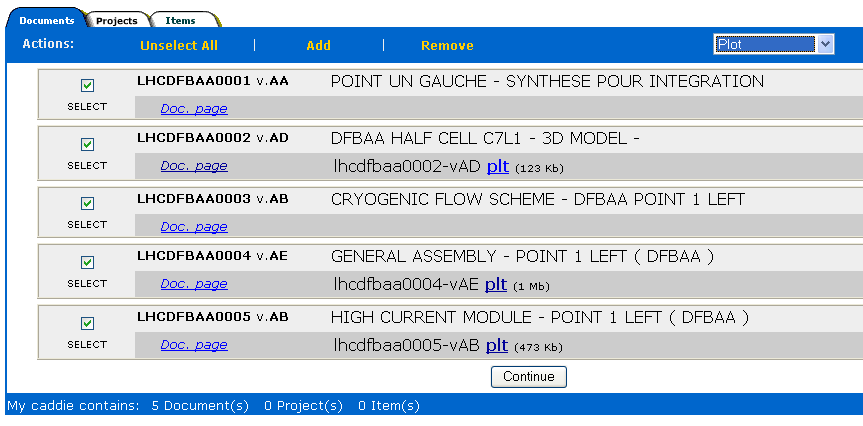
- Choose the action "Plot" in the list of the available actions.
- Click on the "Continue" button at the bottom of the page.
- You will then have the possibility to choose one of the available plotters, the number of copies, the format of the copies (Original or A3 for instance) and the folding option.
- Click on the "Plot" button to send your request.
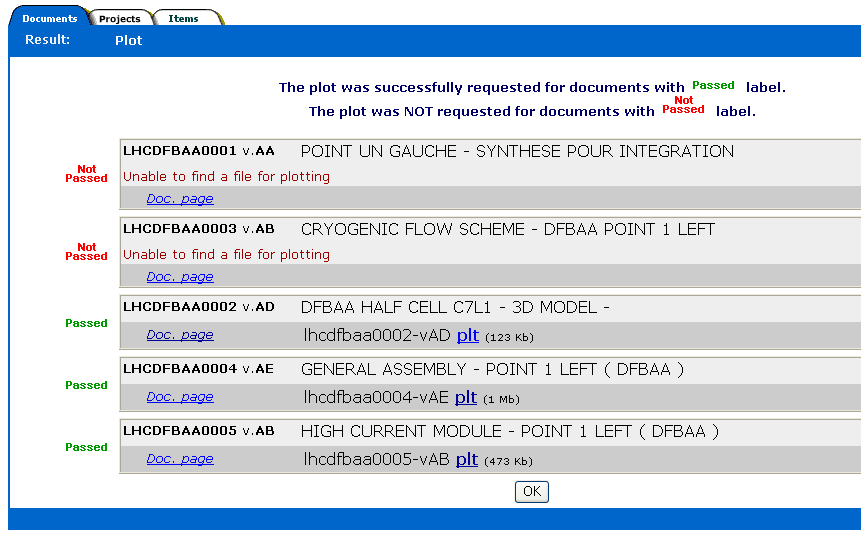
- The obtained page will give you the results of your request. Indeed, some drawings may not be eligible for plotting, usually because there are no files the plot system can handle.
- Click on the "Exit caddie" link (in the top-right corner).
I already attached the drawings I want to plot in a particular EDMS project (or item). How to plot them ?
- Click on the "caddie" link in the EDMS toolbar (in the top-right corner).
- If needed, clean your caddie by using the options "Select All" and "Remove" links.
- Click on the "Exit caddie" link (in the top-right corner).
- Find your EDMS project with the search tool and click on the "Project Page" link. You can also find it with the EDMS navigator. In this case, click on the "Advanced" button.
- Click on the "Documents" tab.
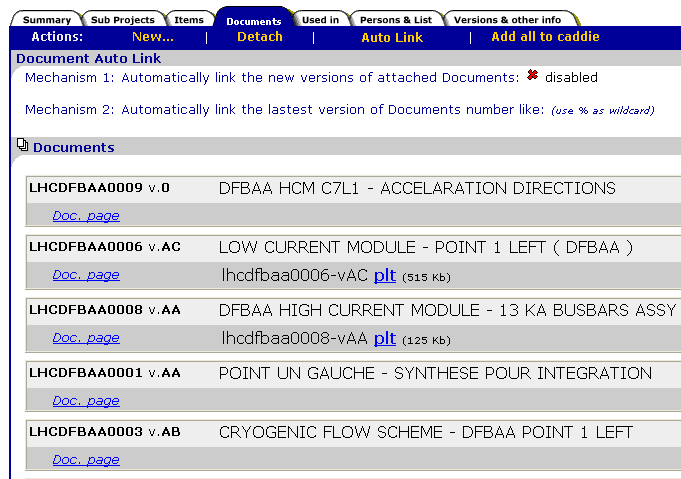
- Click on the link "Add all to caddie". After this action, all the documents referenced under your project are in your caddie.
- Click on the "caddie" link in the EDMS toolbar (in the top-right corner).
- If you want to plot all the drawings contained in your caddie, profit from the "Select All" link. Otherwise, select the only ones you want.
- Choose the action "Plot" in the list of the available actions.
- Click on the "Continue" button at the bottom of the page.
- You will then have the possibility to choose one of the available plotters, the number of copies, the format of the copies (Original or A3 for instance) and the folding option.
- Click on the "Plot" button to send your request.
- The obtained page will give you the results of your request. Indeed, some drawings may not be eligible for the plotting, for instance if there are no files the plot system can handle.
- Click on the "Exit caddie" link (in the top-right corner).
I already attached the drawings I want to plot as sub-documents of a particular "master" document. How to plot them ?
- Click on the "caddie" link in the EDMS toolbar (in the top-right corner).
- If needed, clean your caddie by using the options "Select All" and "Remove" links.
- Click on the "Exit caddie" link (in the top-right corner).
- Find your master document with the search tool and click on the link Doc. page.
- Click on the "Sub-Documents" tab.
- Click on the link "Add all to caddie". After this action, all the sub-documents are in your caddie.
- Click on the "caddie" link in the EDMS toolbar (in the top-right corner).
- If you want to plot all the drawings contained in your caddie, profit from the "Select All" link. Otherwise, select the only ones you want.
- Choose the action "Plot" in the list of the available actions.
- Click on the "Continue" button at the bottom of the page.
- You will then have the possibility to choose one of the available plotters, the number of copies, the format of the copies (Original or A3 for instance) and the folding option.
- Click on the "Plot" button to send your request.
- The obtained page will give you the results of your request. Indeed, some drawings may not be eligible for the plotting, for instance if there are no files the plot system can handle.
- Click on the "Exit caddie" link (in the top-right corner).
I would like to reference in a "folder" my current set of drawings for a tender. What do you recommend ?
- The CDD folders are not adapted to such cases because they don't reference the particular versions but only the drawing numbers. If your drawings continue to evolve after the tender, you won't be able to easily know the exact versions of the drawings you sent.
- On the contrary, the EDMS always references the exact versions, whatever the "master" objects is (Project, Item, Document).
- More precisely, we recommend you to register a new document of type "Drawing Folder".
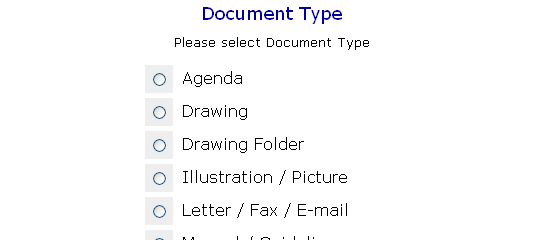
- If this type doesn't appear in the list of the available document types, please contact your EDMS local administrator or EDMS.Support@cern.ch.
- In the document page of the obtained "Drawing Folder", click on the "Sub-Documents" tab.
- Click on the "New..." link. If your drawings are coming from CDD or if they already exist in the EDMS, click on the "Attach" button.
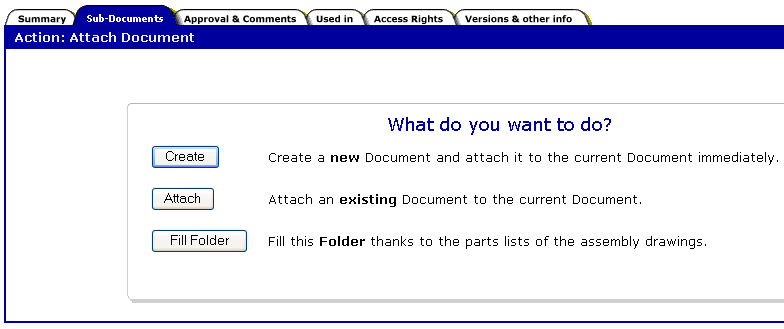
- Attach the exact version you want to reference.
- If needed, you can "release" your Drawing Folder in order to avoid any further changes.
- Since the 18th of September 2006, the EDMS Drawings Folders appear in CDD as well. They are not editable but you can look at the associated drawings, perform the operations about the life-cycle label and start/stop the approval processes.
My drawings have been made according to the CERN Quality Assurance Plan. Is it possible to avoid to attach them one by one in my Drawing Folder ?
- It is indeed possible to profit from the data of the parts lists.
- These data are coming either from the edition of the title blocks with CartWeb or extracted during the archiving processes of the released drawing.
- If your Drawing folder doesn' exist yet, create it as described above
- In the document page, click on the "Sub-Documents" tab.
- Click on the "New..." link.
- Instead of clicking on the "Attach" button as above, click on "Fill Folder"
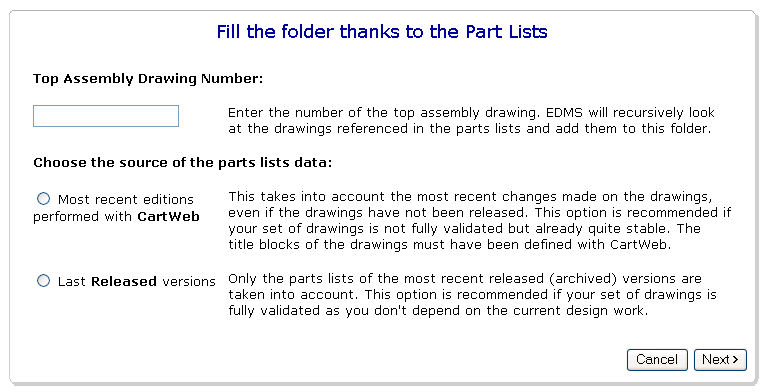
- Simply enter the number of your top assembly drawing and choose the appropriate source for the parts lists.
- Follow the next
steps of the wizard. At the end, all the drawings referenced in the
parts lists will appear as sub-documents.

